 SiteView help
| SiteView help
|
The status of a logger is a set of properties that are saved
inside the logger. The properties are used by the logger and SiteView
software. When SiteView communicates
with the logger, it first retrieves all properties of the logger, parses them
into meaningful information and populates them on the graphical user
interface. If the
communications between SiteView and the logger was established successfully from
the above chapter, the status of the logger appears in a tab page illustrated
below: The tab page
caption shows the name and the serial number of the logger to identify this tab
page. The status page
shows the general, the channel level, and other settings. The status page is for viewing purpose
only. To edit the properties and save them back to the logger, please go to Logger Configuration dialog by clicking
Configure tool bar
button. Through the
tool bar buttons you can finish other tasks described in the following
chapters. Please refer
to Status of logger for the detailed
explanation of each field. This page
specifies the basic logger status information like start and end time, memory
usage, logging mode etc. Channel
properties specify how many channels the logger has and each channel’s
information such as if the channel is enabled or disabled, the description and
the applied equation etc. This page
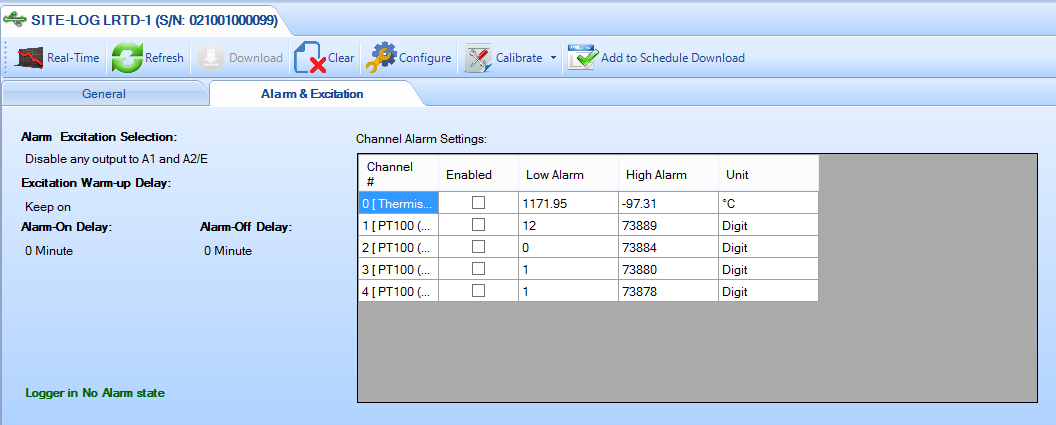
specifies how the logger acts if there is an alarm. Excitation
Control status is displayed in this page like Excitation Warm-up Delay and if
the excitation control connects to the terminal pole. It is important
to know that the logger is operating properly. What status can we use to tell if
the logger has stopped logging data and is operating
abnormally? The first status you should look at is
the blue bold section just above the Channel information: This status
tells you if the logger is logging data or has stopped. Other information it
reports can be: Another status
you should focus is the battery level. If the on-board battery level is too low
you will get the red warning sign indicating it’s time to replace the
battery.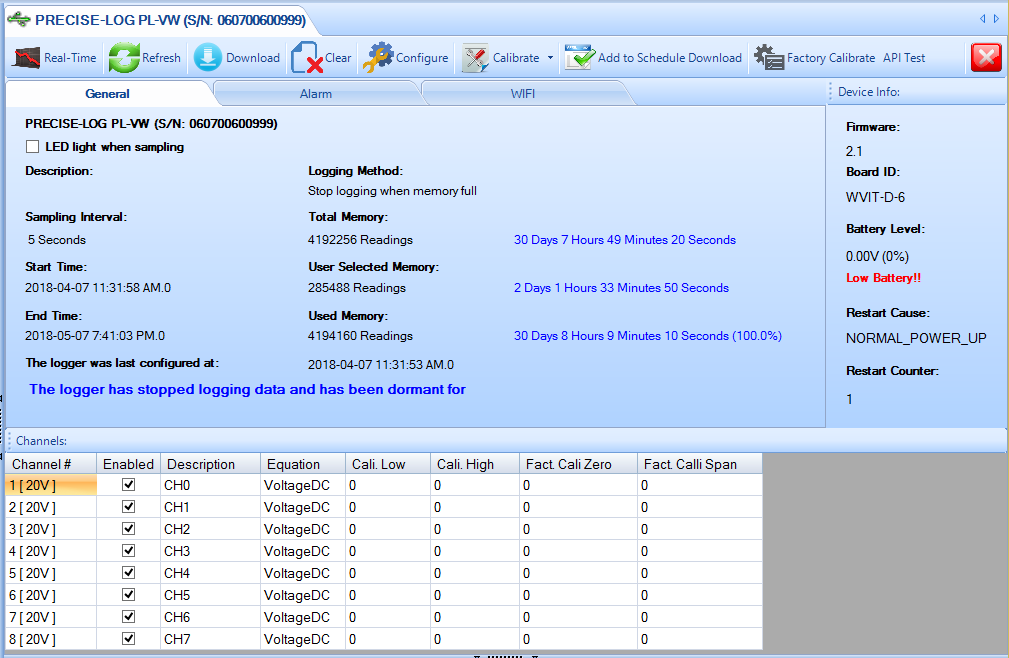
General Status
Alarm and
Excitation Status (No excitation controls for PRECISE-LOG series)
Know if logger
operate properly

The logger is in
start-delay mode and is counting down the timer. Once the timer goes to zero
the logger will start logging data.
If you set Time to Start field
to a time in the future you will see the above status. If you want the logger
to record data right after the logger is configured you can set this field to
now or a time in the past.
If the logger is in dormant mode, it
stops logging data and waits for SiteView to download the
data.
Usually, this is because the When
Memory Full field was set to Stop Logging when the logger was
configured, and when the memory is full the logger will stop logging and in
dormant mode.
If you want the logger to keep
recording data you can set When Memory Full field to Continue
Logging.
If the logger is in First-In-First-Out mode, the logger keeps
overwriting the oldest data with the new measured data.
If you are only interested
in a specific time frame, you may need to set When Memory Full field to
Stop Logging. In this case, the logger will stop logging when the time
passed the Time to End parameter.